Media Hub
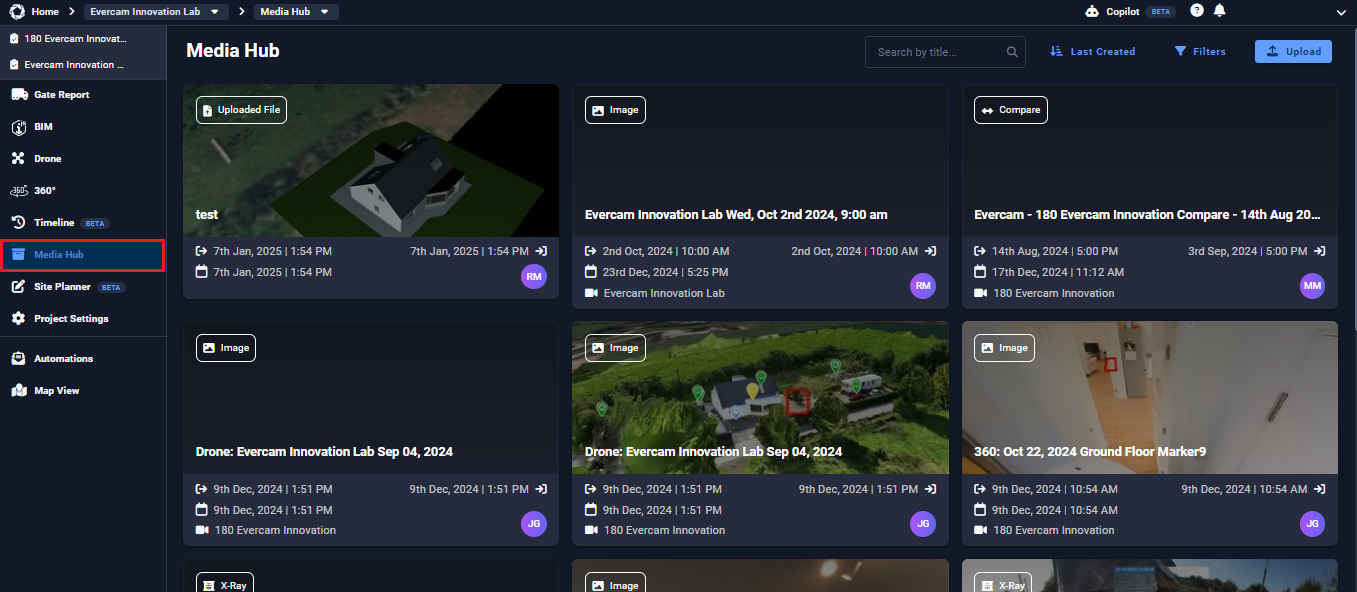
Media Hub is a tool within the Evercam platform that centralises all project media in one place. It provides access to cloud recording clips, time-lapse videos, edited images, comparison files, X-rays, and uploaded media, allowing teams to search, filter, review, and share visual project data efficiently.

The Media Hub is your go-to storage for all saved recordings, snapshots, and time-lapses. Instead of searching through endless footage, quickly find, review, and share key moments – all in one place.
How to Use the Media Hub
- Click the Media Hub tab in the left-hand navigation bar of the Evercam dashboard.
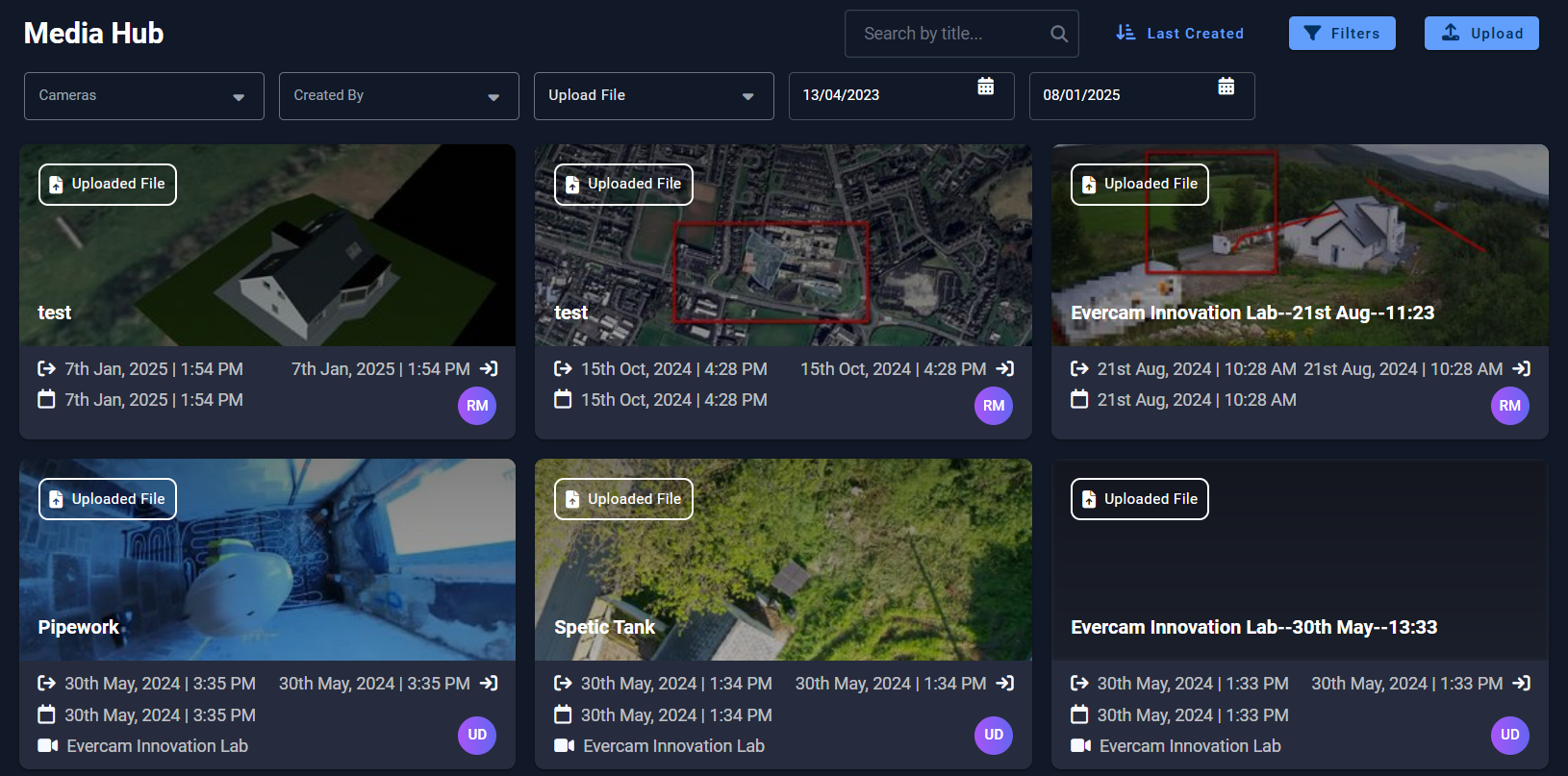
- All saved media (recordings, time-lapses, mark-ups) will appear in a grid or list view.
- Use the search bar or apply filters to sort media:
- By camera
- By file type (GIF, video, image, etc.)
- By creator
- By date
- Sort A-Z or Z-A alphabetically
- Click any media file to preview it in-browser.
Upload External Media
- Use the Upload button in the Media Hub to upload files directly or via URL.
- Note:
- All file formats are accepted
- Only .mp4, .jpg, PDF, and .png will be viewable in the platform
Download or Share Media
- Click on a media item.
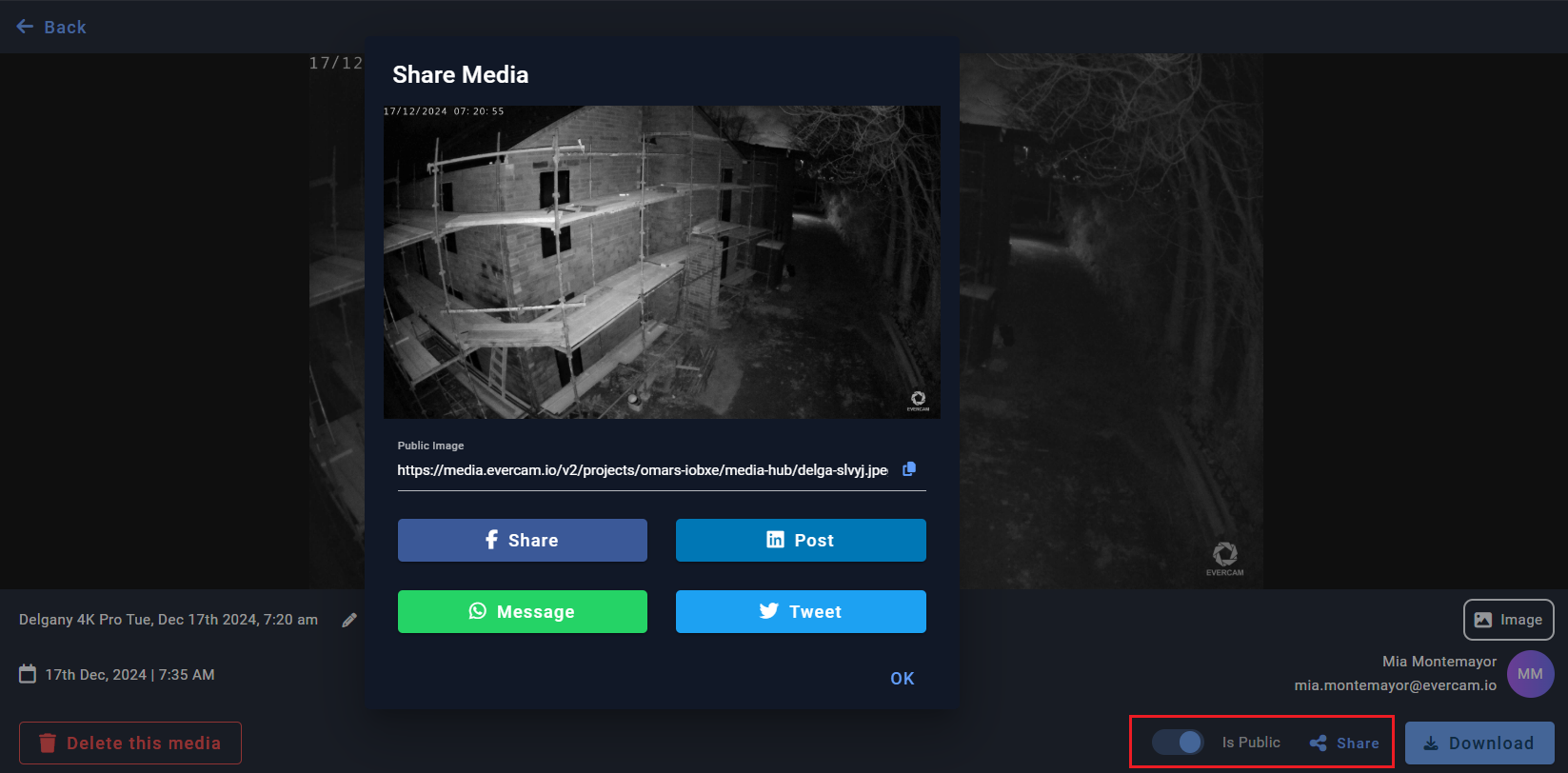
- A Download button will appear at the bottom right corner of the screen.
- Click to save it to your device.
- If sharing is enabled by your Company Admin:
- You can click the Share button to generate social or direct-share links.
- Note: The file must be marked as Public to enable sharing.
Want More Info?
Read the full guide in our User Manual.
[[cta]]