2D Mode
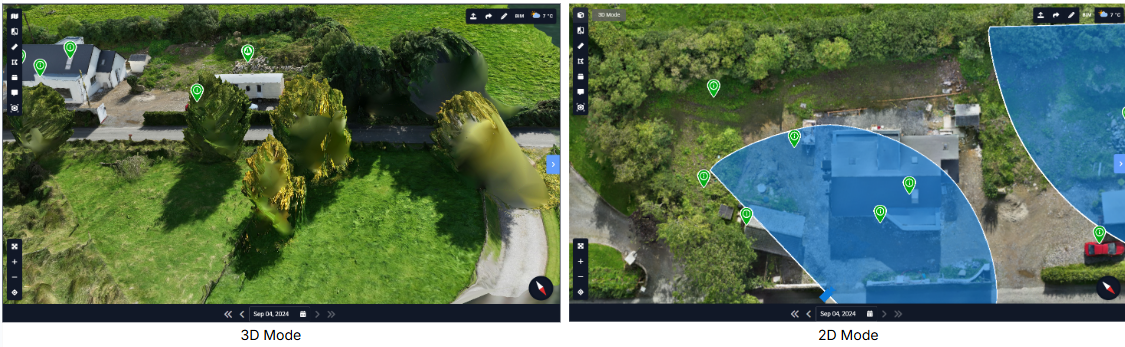
2D Mode provides a clear, top-down view of your site using orthographic imagery. By removing perspective distortion, it allows teams to accurately inspect layouts, boundaries, and site context. This mode is ideal for measurements, planning, and quick spatial understanding when working with drone or map-based views.
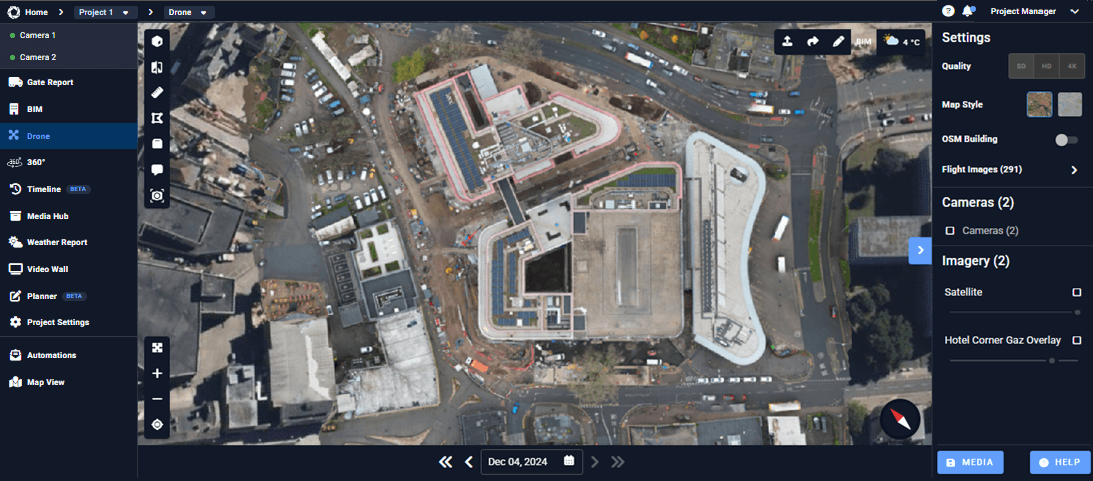
How to use 2D Mode:
- Click the 2D Mode icon in the top left corner of the Drone interface.
- The view will switch from 3D to a flat, overhead 2D representation.
- Use your mouse or trackpad to pan and zoom within the 2D view.
- Rotational controls are disabled to maintain a consistent top-down perspective.
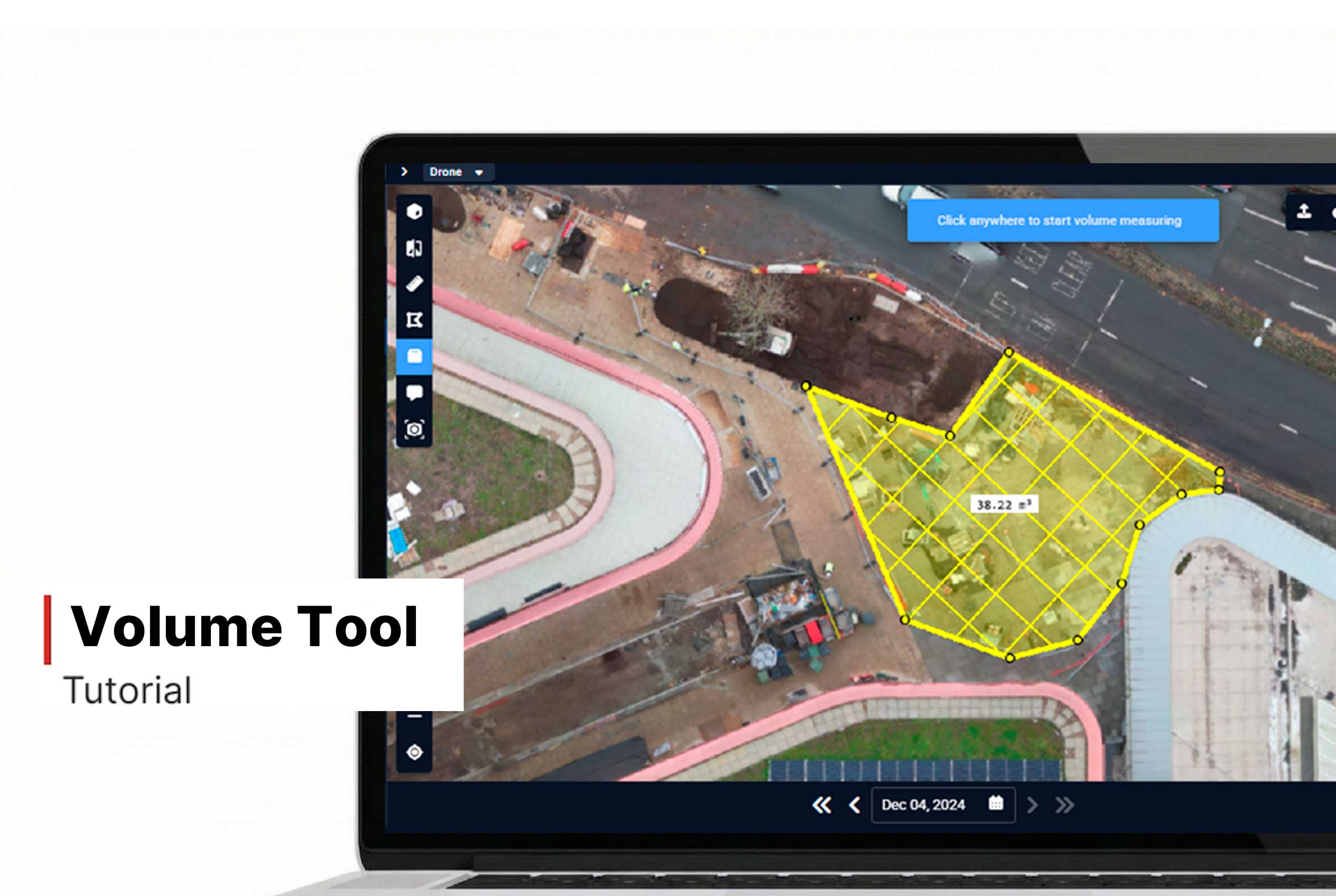
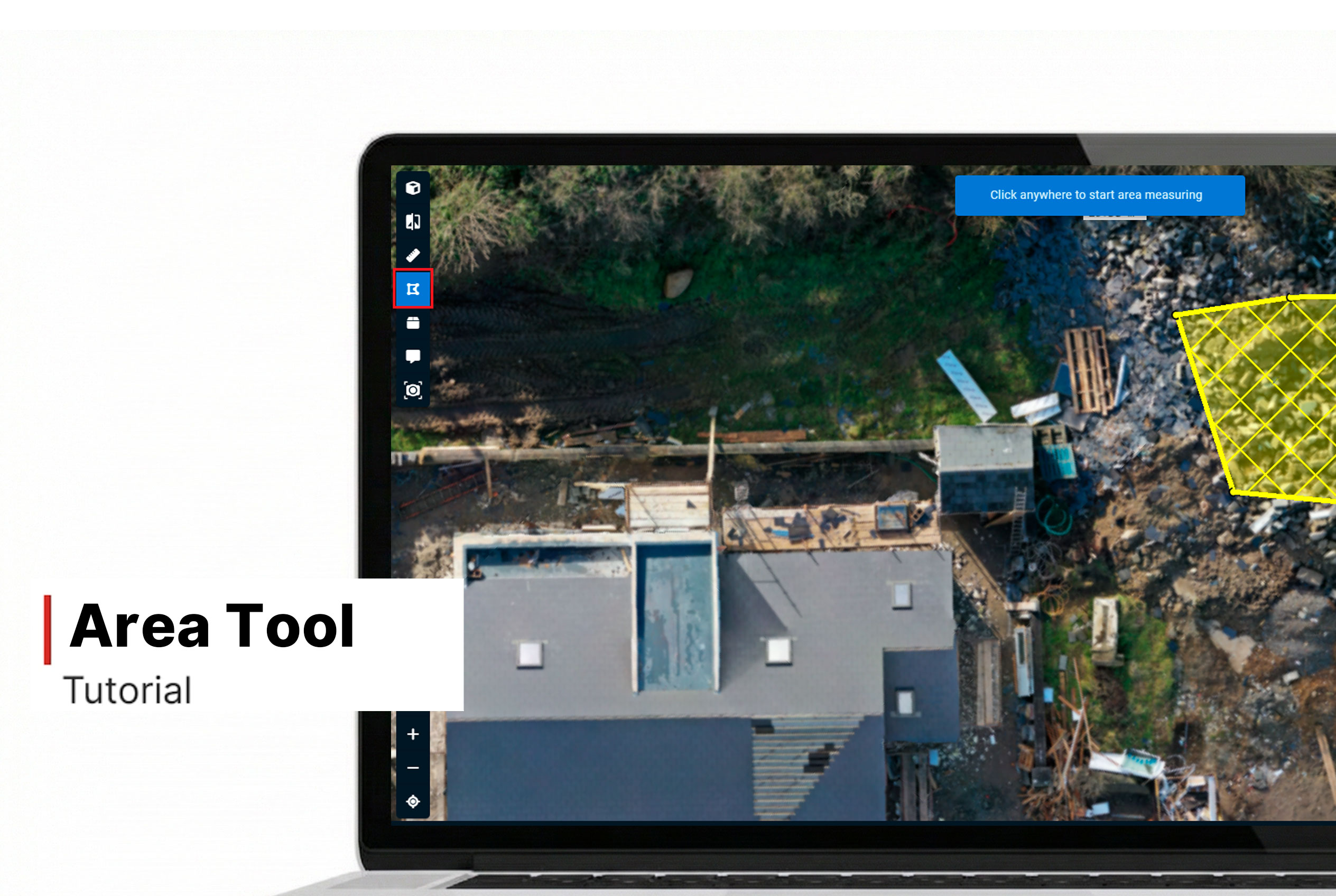
- Perform area or volume measurements more precisely in 2D Mode.
- Align floor plans or other overlays accurately within this view.
Want More Details?
Read the full guide in our User Manual.
[[cta]]