Mark Up
The Mark Up Tool is a feature within the Evercam platform that allows users to annotate recordings with notes, shapes, and drawings. Available directly in the interface, it helps document observations and visually highlight details on site images.

How to Use the Mark-up Tool
- Select the camera
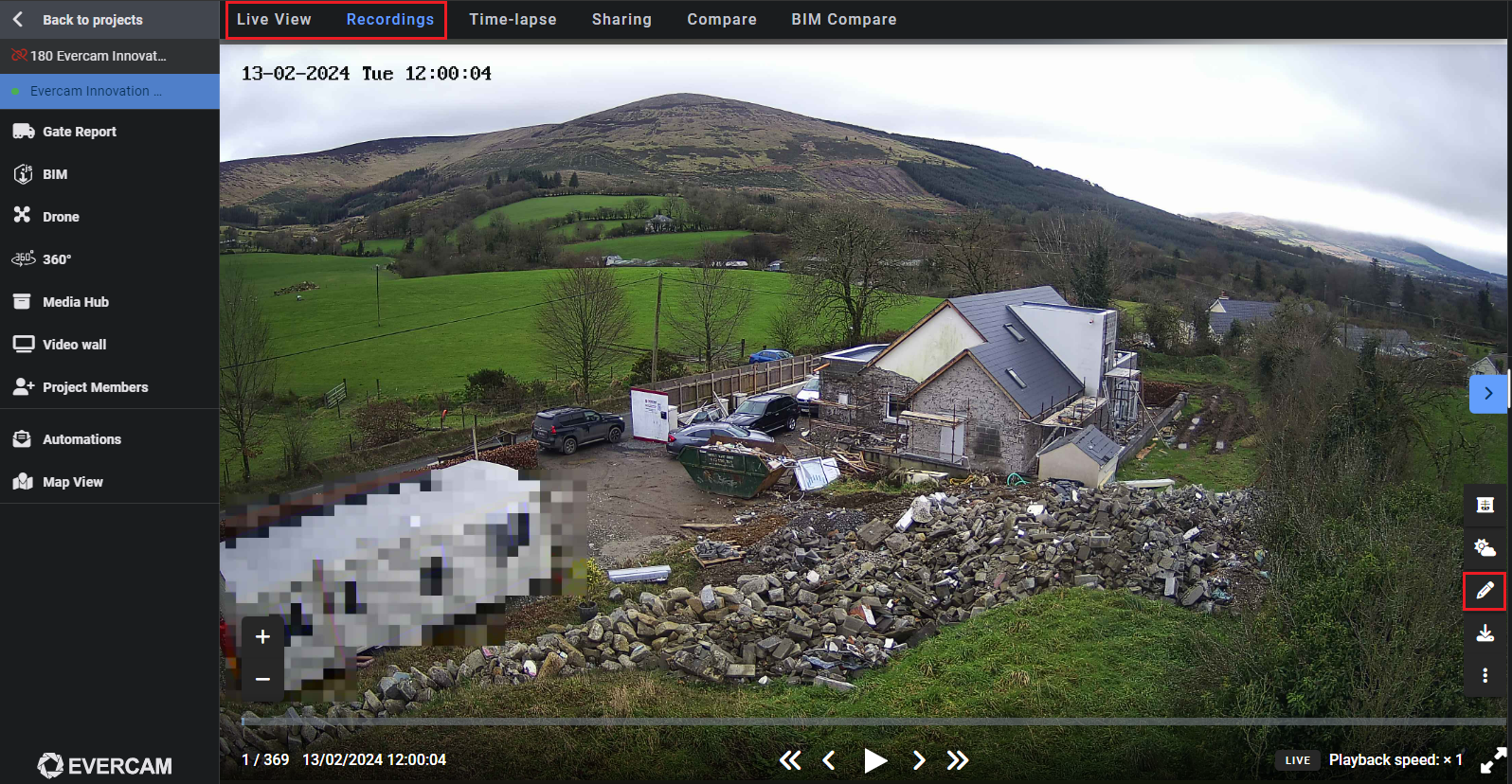
- Open the Live View or Recordings tab at the top of your dashboard.
- Click on the Mark-up Tool icon to activate mark-up mode.
- Draw & Highlight – Use freehand drawing or preset shapes to emphasize areas. You can also blur sensitive information, crop to focus on key sections, and rotate the image for better alignment.
- Add Text & Notes – Click anywhere on the image to insert a note.
- Change Colors – Select different colors for better visibility.
Save & Share
- Click Save to keep your annotations.
- Download the marked-up image or share it with your team for quick collaboration through integrations like Procore, Aconex, and Autodesk.
Need More Details?
Read the full guide in our User Manual.
[[cta]]