Time-lapse Creator
Time-lapse Creator is a tool within the Evercam platform that allows teams to generate time-lapse videos from camera footage to track site progress over time. It provides a clear visual record of how a project is unfolding, supporting reporting, team alignment, and visibility across stakeholders, without requiring daily site visits. The same footage can also be reused for presentations when needed

How to Create a Time-lapse
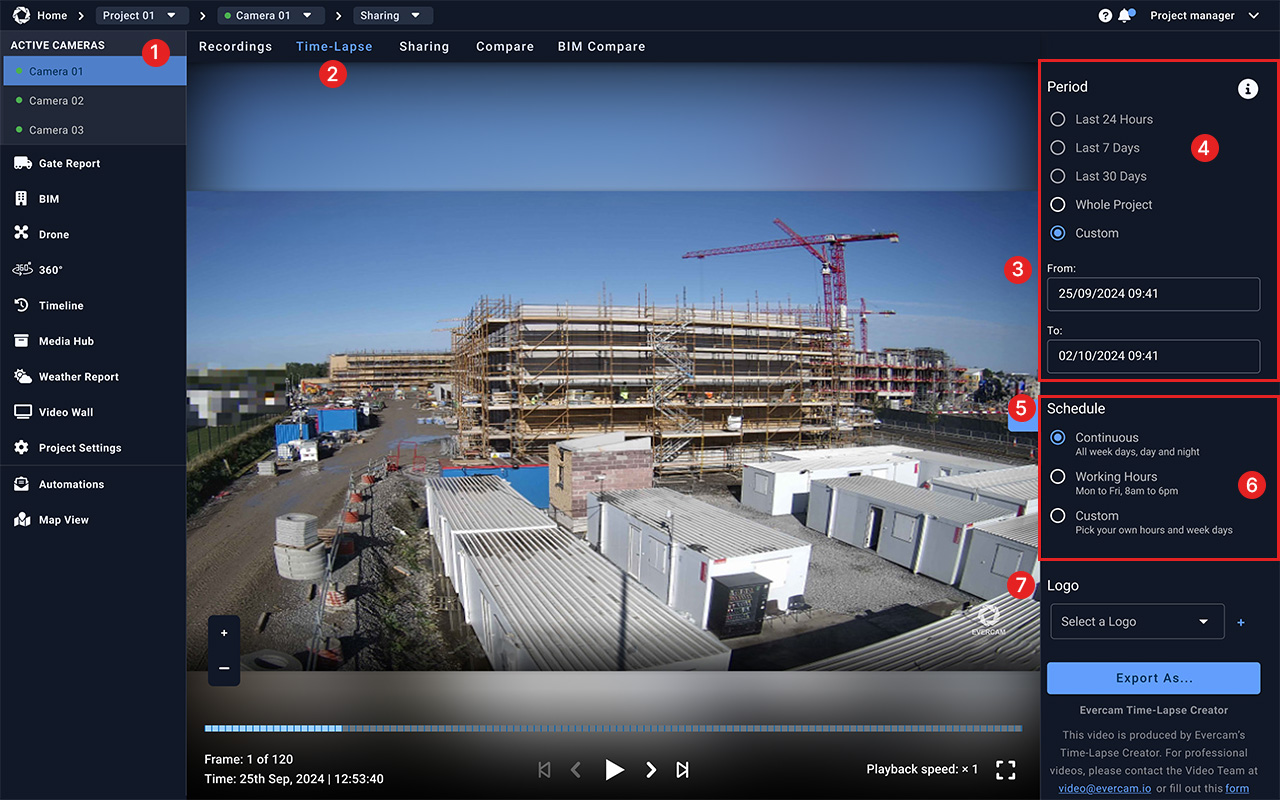
- Select a camera from the menu on the top left of your screen.
- From the top left-hand menu, select “Time-lapse.”
- Use the date range selectors at the top right-hand menu of the page to set your time window.
- Alternatively, use pre-set ranges (e.g., Last Week, Last Month, or Custom) below the Period.
- Scroll down to “Schedule” settings.
- Choose between continuous playback or specific working hours/days.
- Look for the “Logo” option on the right-hand side to include branding.
How to Export & Share
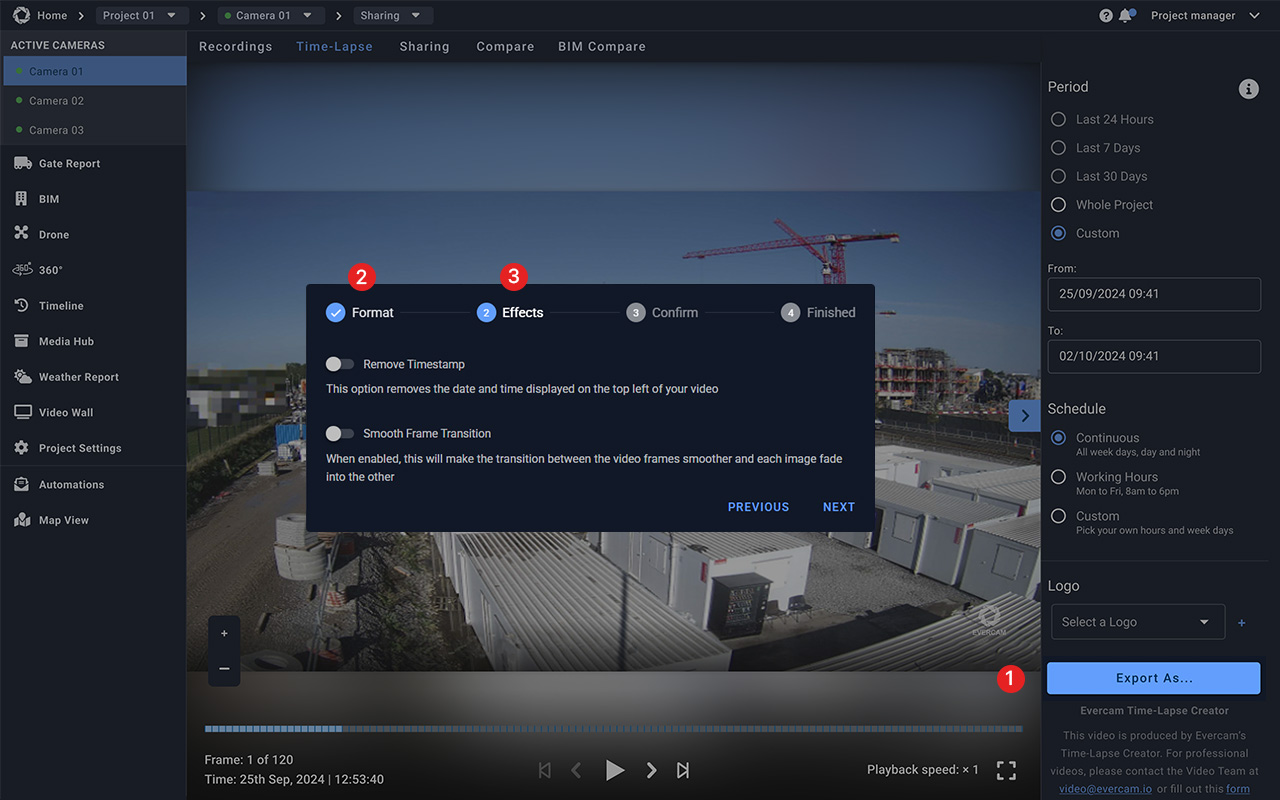
- Click the “Export” button in the bottom right to create and download the video.
- Select the Format (30, 60, 90 seconds).
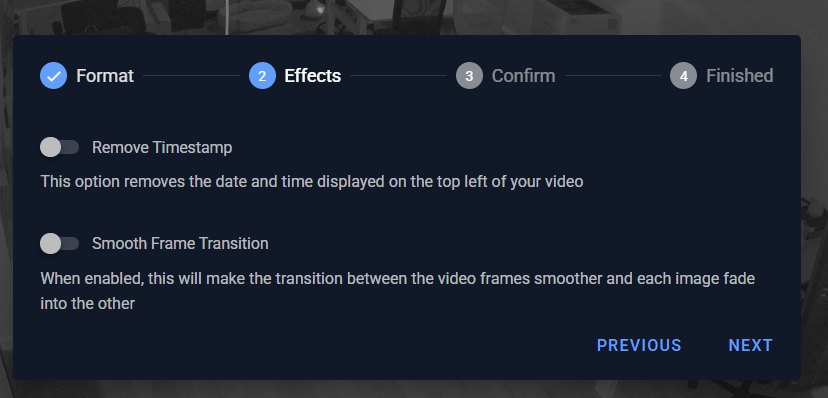
- Select the Effects (Remove Timestamp, Smooth frame transitions)
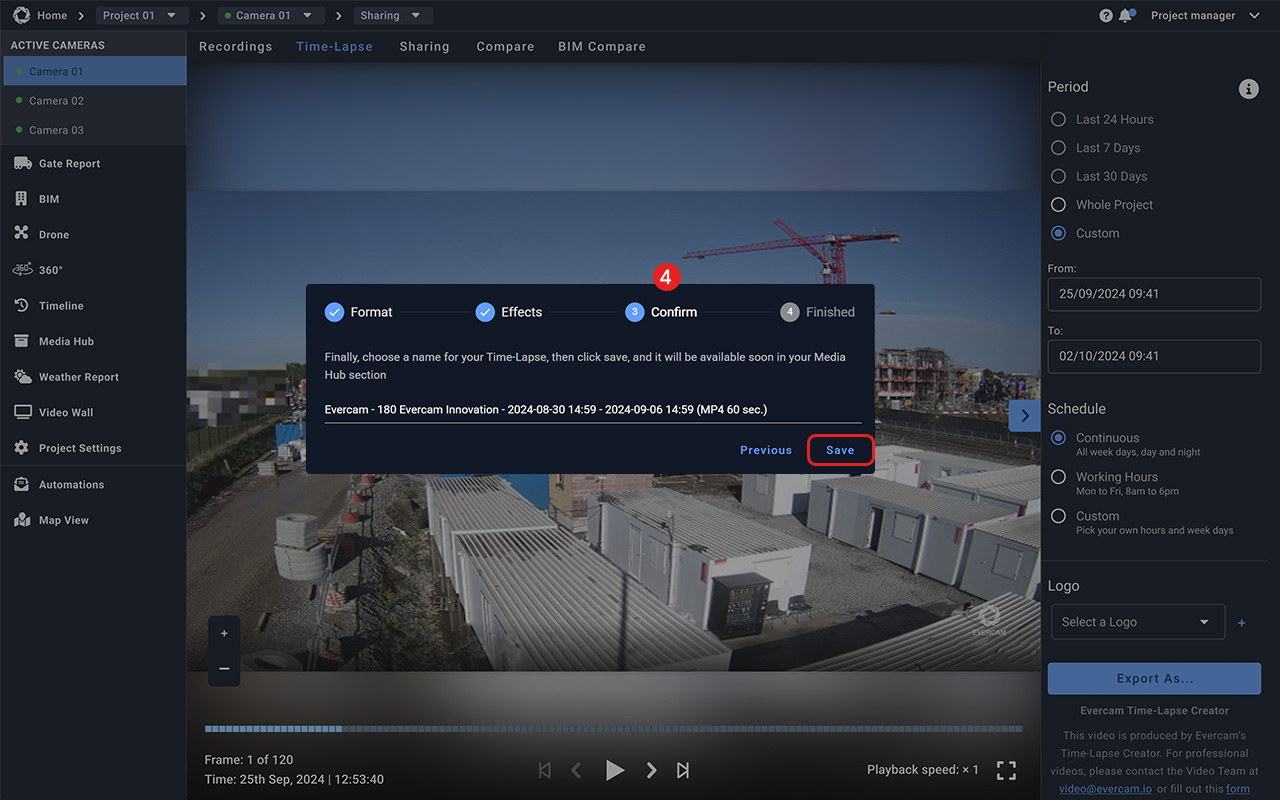
- Confirm your time-lapse creation and give it a name
- Use video controls under the player to watch your timelapse.
Want More Details?
Check out the full guide in our User Manual.
[[cta]]