Drone
Drone is a feature within the Evercam platform that allows users to upload and view drone imagery in the context of a site. It helps provide additional visual perspective alongside existing site recordings within the interface.

How to Use the Drone View Tool
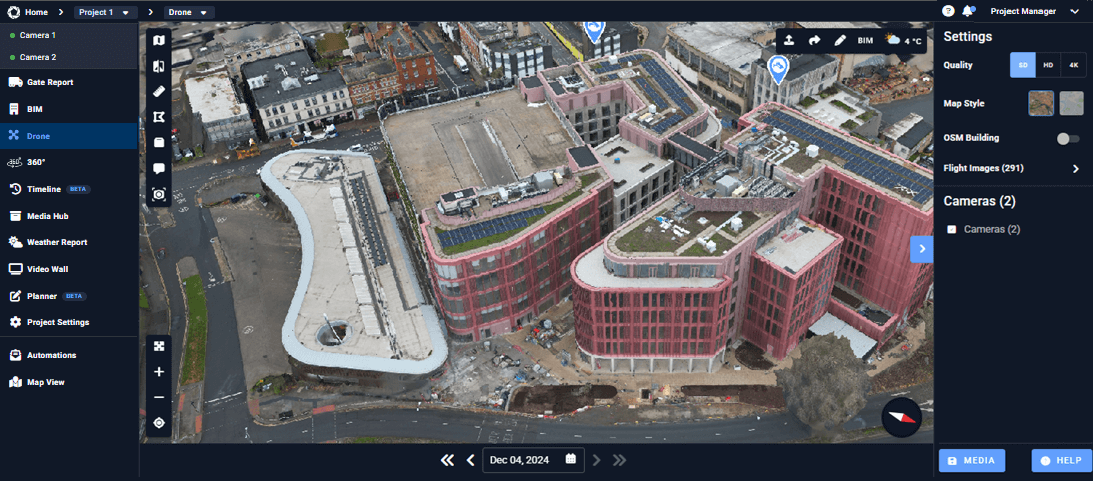
- Navigate to the Drone View tab in the left-hand menu of your Evercam dashboard.
- Select a flight date at the bottom navigation bar to view it in detail.
Analyze & Share
- You can annotate and edit the image with the Mark-up Tool.
- Zoom in to inspect specific areas of the site.
- Download or share aerial images with project stakeholders.
Additional Tools in Drone
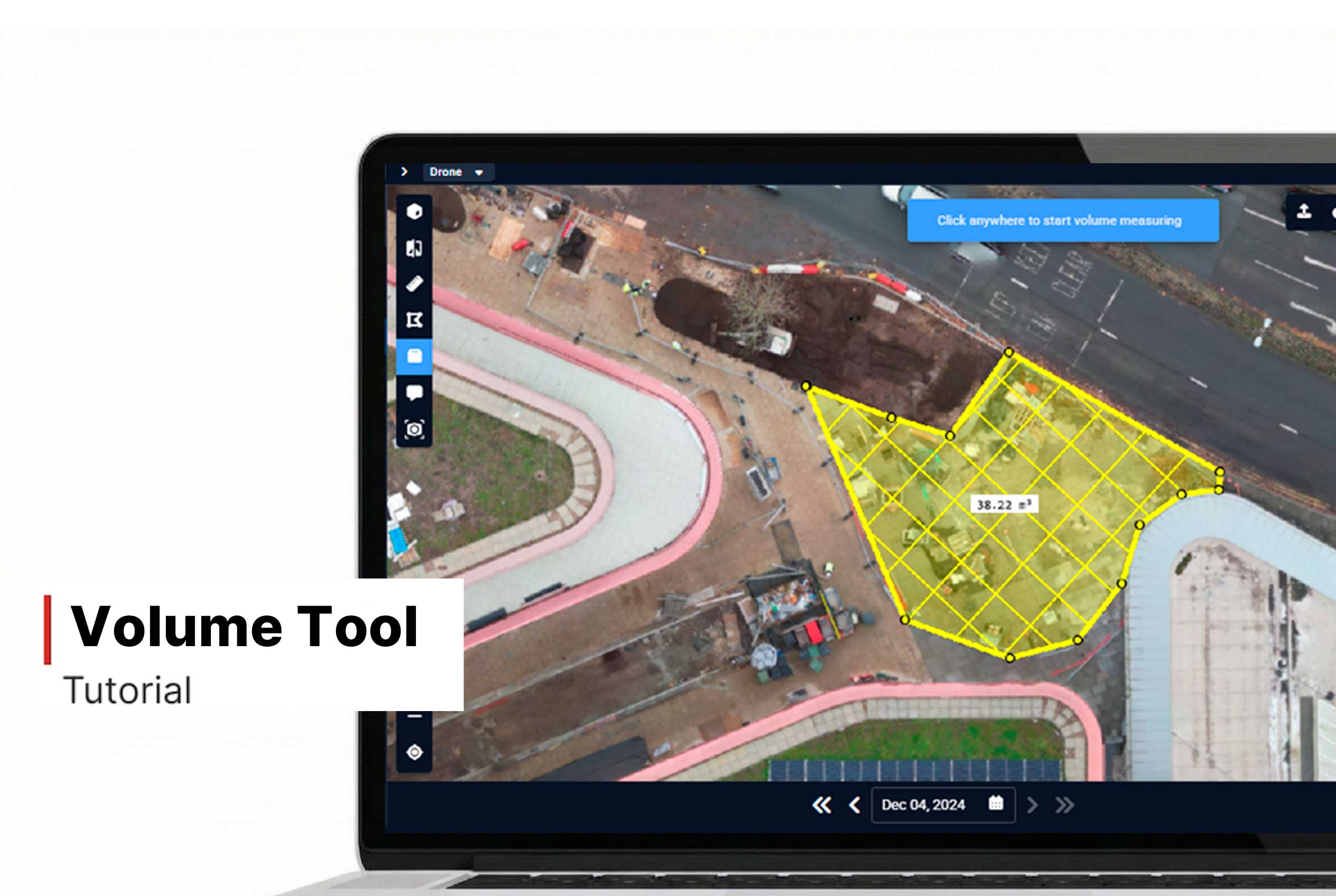
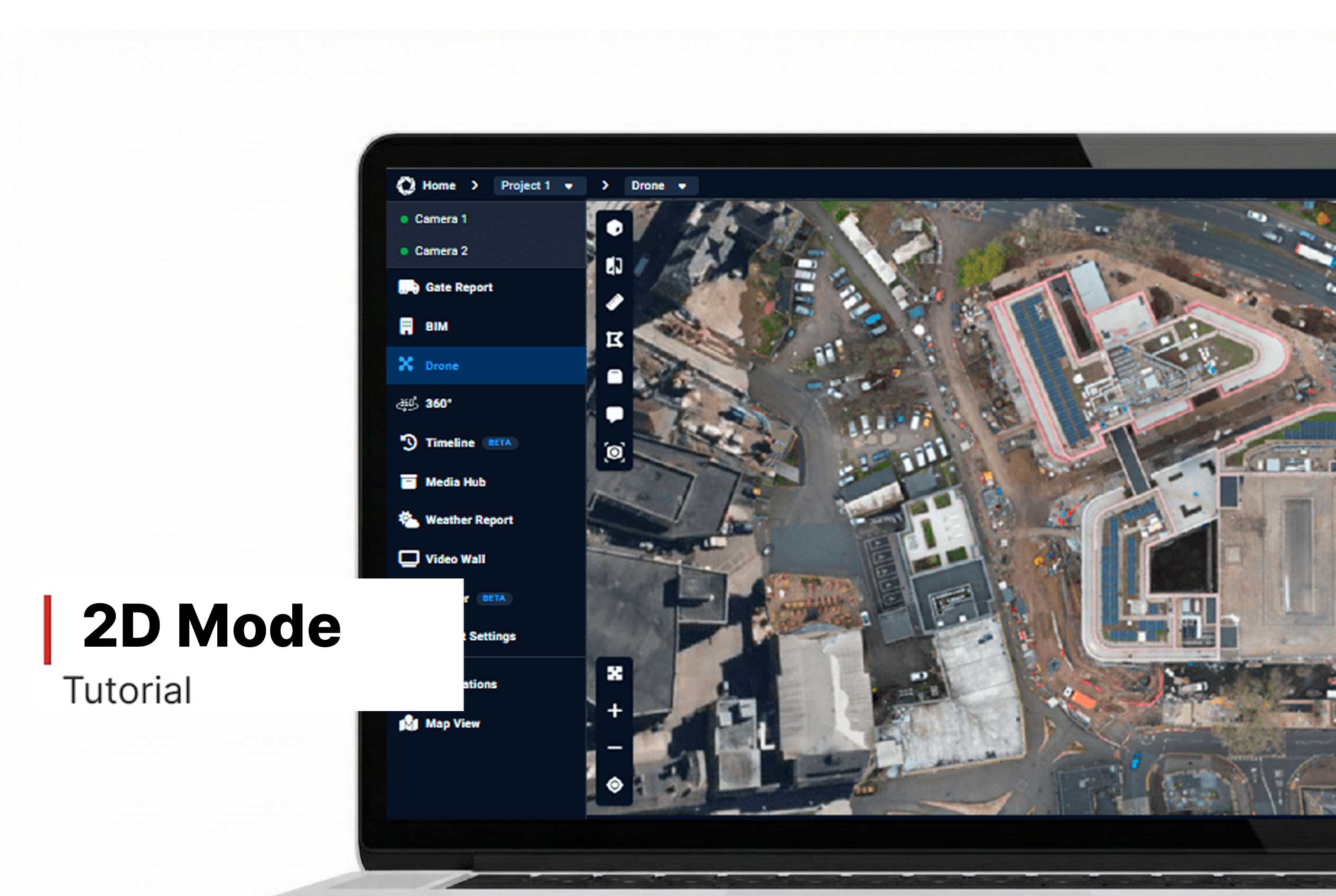
Use the additional tools in Drone View to get more insights from your project. In the top left corner, you’ll find features like 2D Mode, Compare, Distance, Area, Volume, Comments, and Inspection. These tools allow you to measure distances, compare different flights, and inspect specific areas on the map. Meanwhile, the top right corner displays current weather conditions and gives you access to annotation tools.
Want More Details?
Read the full guide in our User Manual.
[[cta]]