Compare
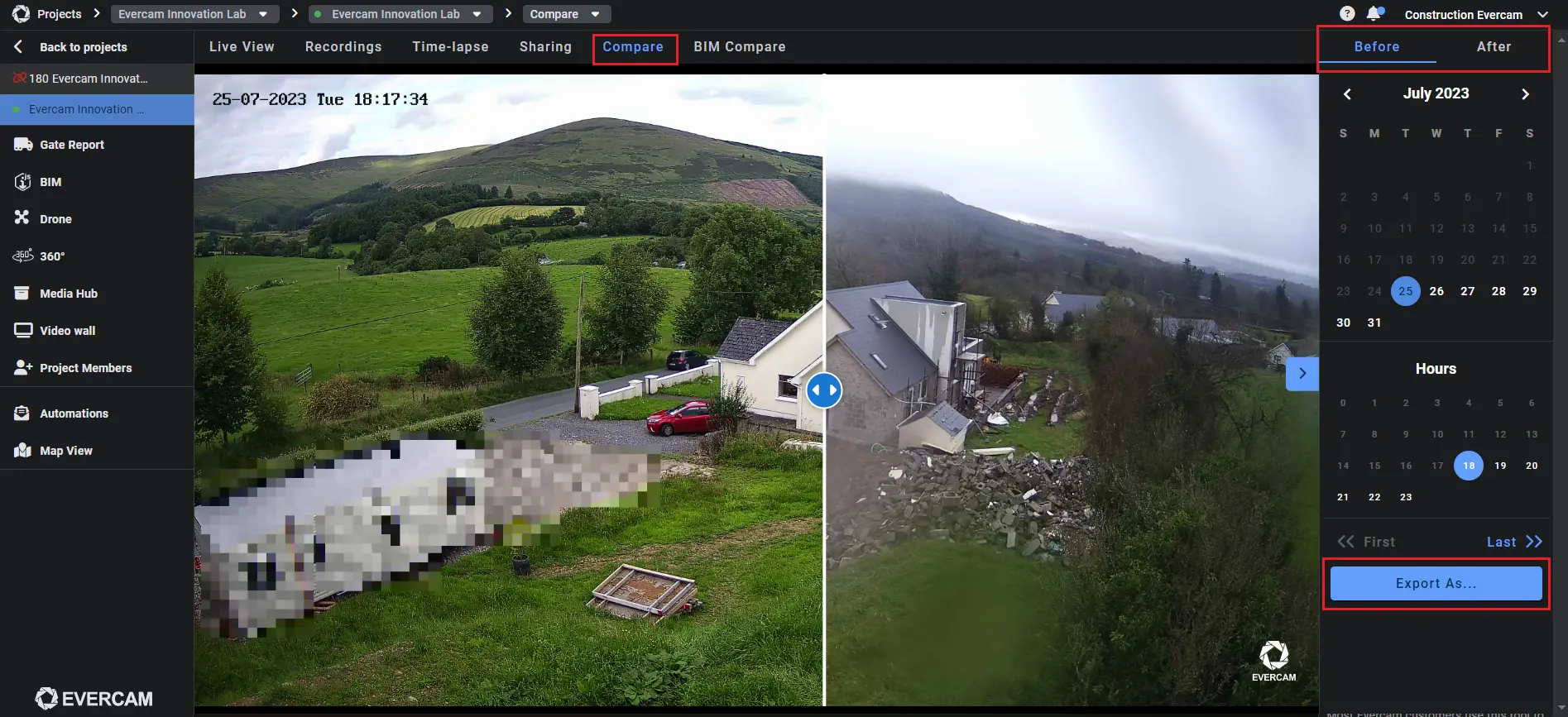
The Compare Tool allows you to visually compare site conditions across different dates using side-by-side images from your construction cameras. By switching between timestamps, teams can clearly identify changes, verify progress, resolve disputes, and track construction activities over time without relying on manual photo comparisons.

How to Use the Compare Tool
- Select the camera from your list.
- Click the Compare Tool tab on the top of your Evercam dashboard.
- Choose the first image by selecting a date and time from the calendar.
- Choose the second image – this could be a past image or a live feed snapshot.
- Drag the slider left or right to reveal differences between the two images.
- Adjust the zoom level to focus on specific details.
Download & Share Comparisons
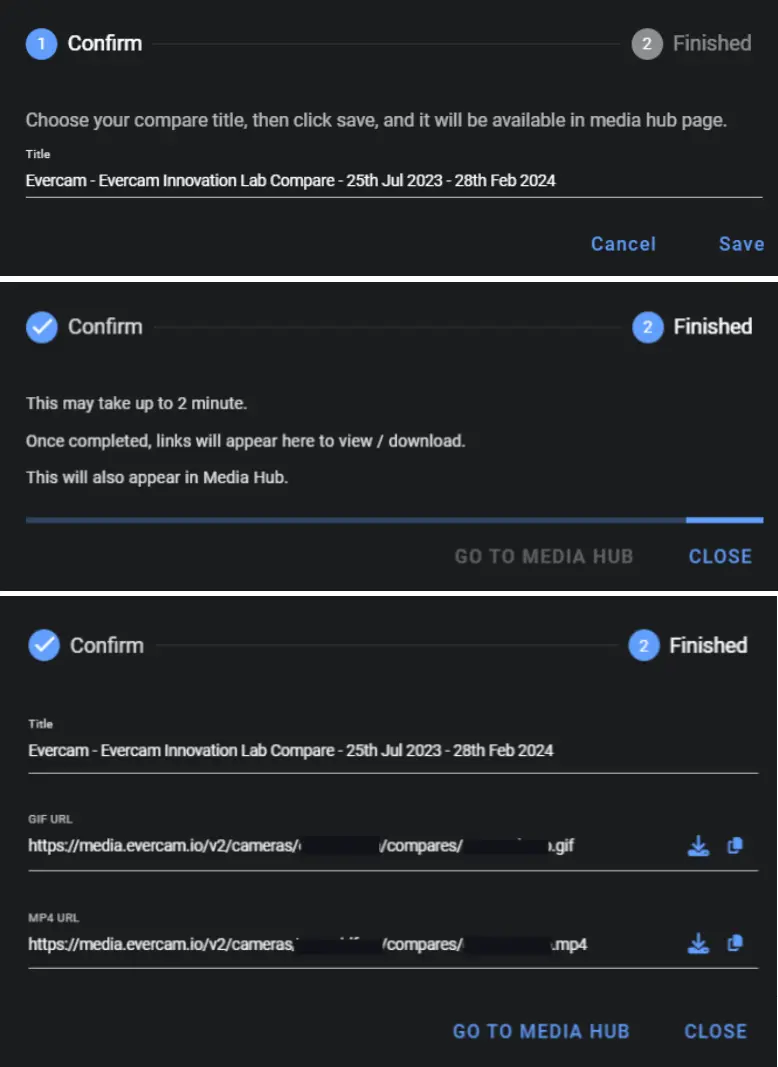
- Click Export to save the comparison as a GIF.
- Access saved comparisons in the Media Hub for reporting and collaboration.
Need More Details?
Check out the full User Manual.
[[cta]]