BIM Integration

BIM allows you to view 3D or 4D digital models in their real-world environment and switch between the model and site reality to track changes and communicate project progress within the Evercam platform.
BIM Compare (Design vs. Reality)
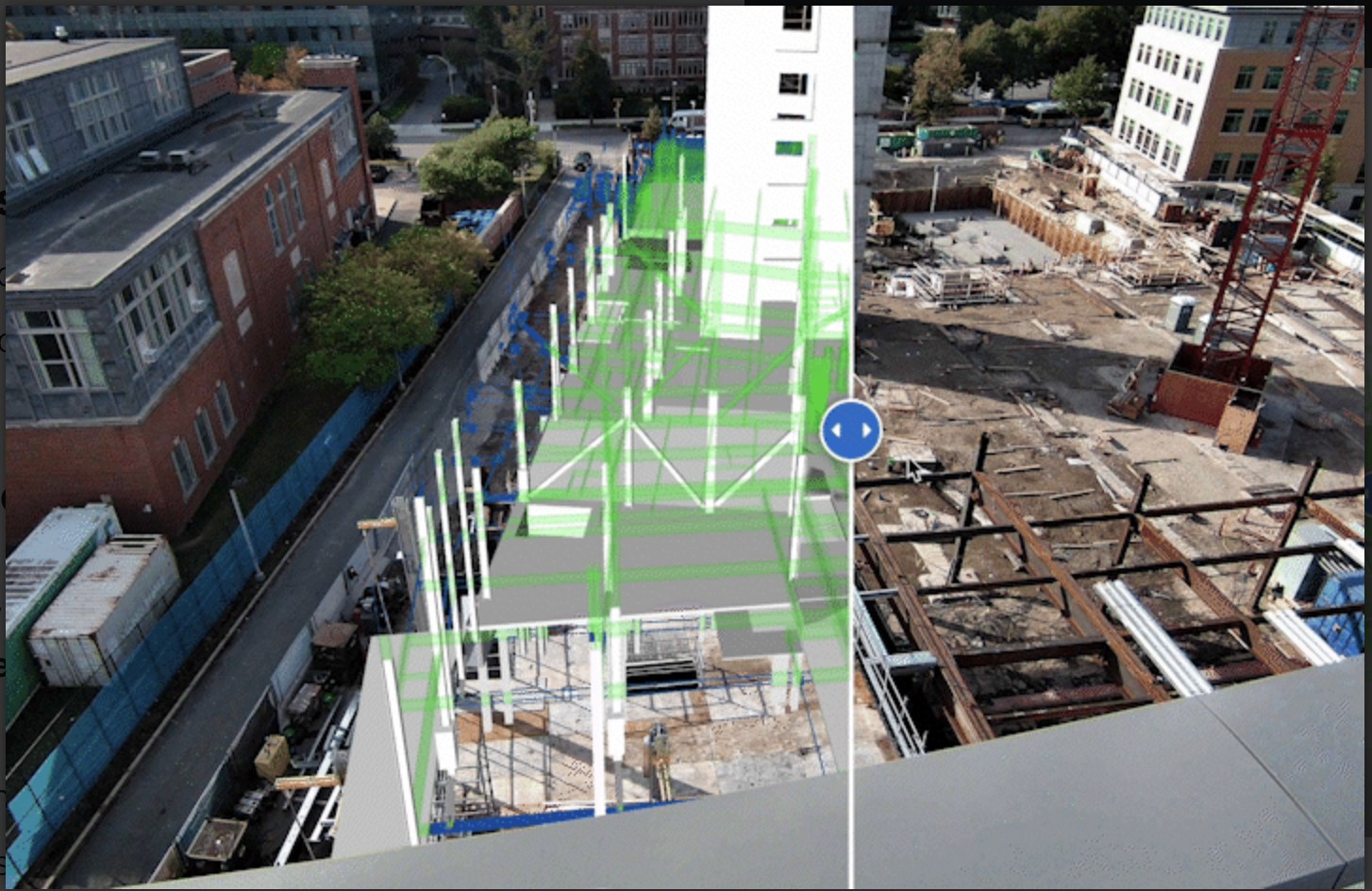
BIM Compare overlays your BIM model onto the live camera image, allowing you to compare the as-designed and as-built states.
How to Use BIM Compare:
- From your dashboard, select your camera.
- Access BIM Compare – Click the BIM Compare tab in the dashboard.
- Select a Date – Use the calendar or timeline to match the BIM model to the construction progress at a specific point in time.
- Compare Design vs. Reality – Drag the slider to reveal the differences between the live view and the BIM model.
- Adjust Transparency – Use the Transparency Tool to see the live view behind the model.
- View Model Layers – Toggle between Architectural, Structural, MEP, or 4D layers to focus on different construction elements (availability depends on the BIM model provided).
- Download & Share – Export the current comparison as a GIF, which will be saved in the Media Hub for easy access.
Note: For proper alignment, the camera must have Lens Distortion Correction (LDC) enabled. If the camera moves, the BIM model must be realigned. One realignment per month is included; additional realignments may incur a charge.
BIM view (3D Model Navigation)
BIM View provides an interactive 3D model viewer within Evercam, allowing teams to explore and inspect the entire BIM model without requiring external software.
How to Use BIM View:
- Access BIM View – Click the BIM View tab in the dashboard.
- Navigate the Model – Use zoom, rotate, and pan controls to explore the model from any angle.
- Toggle Model Layers – Switch between Architectural, Structural, MEP, or 4D layers to inspect specific elements.
- Collaborate & Share – Capture screenshots and share insights directly from the viewer.
By combining BIM Compare and BIM View, Evercam’s BIM Integration provides unmatched visibility into construction projects, making it easier to track progress, detect issues early, and ensure compliance with the design.
Need More Details?
Check out the full User Manual.
[[cta]]