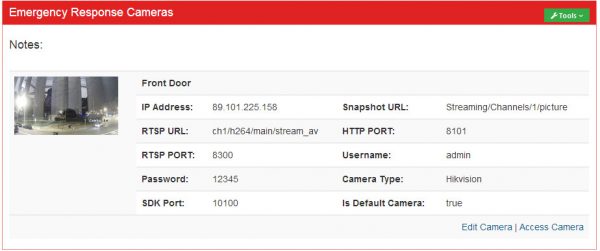

Operator View
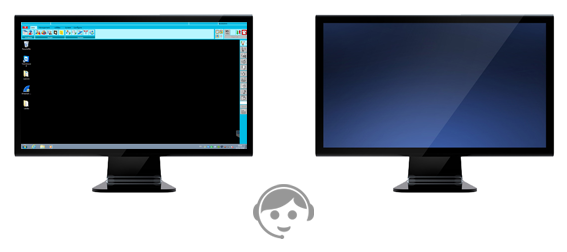
On the left hand monitor we see the Tunstall operator�s screen in its idle state � waiting for a call.
When a call is identified, either inbound or outbound, the appropriate video stream is immediate�ly loaded in a second monitor connected to the same PC.
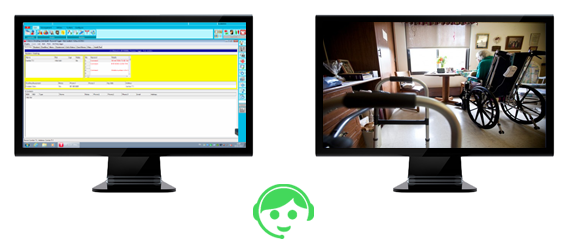
When the call is finished, the video session is also closed and the operator screen returns to its idle state.
This happens automatically without any interaction from the Tunstall operator
How it works
- Zero interference with existing processes: The Evercam solutions operates only on a secondary monitor. It requires no intervention from the operator and it in no way affects the operation of the existing telephony software.
- Handles all events: The system is fully automated and responds to incoming and outgoing calls. It responds on call answer, re-queuing and hang up events.
- Device independence: the system works with any Tunstall device that triggers event via Tunstall telephony software: smoke alarms, sensors, fobs, Lifeline units etc�
- Privacy: video only accessible during event (by normal ER operator)
- Low bandwidth: since video is only streamed during an event the bandwidth implications for both ER management and customer is minimal.
- Logged calls:� A log is recorded of all calls received and videos watched.
Administrator Login
Data Management Portal
The system features a data management portal which will allow Tunstall to manage all data related to the cameras within the system.
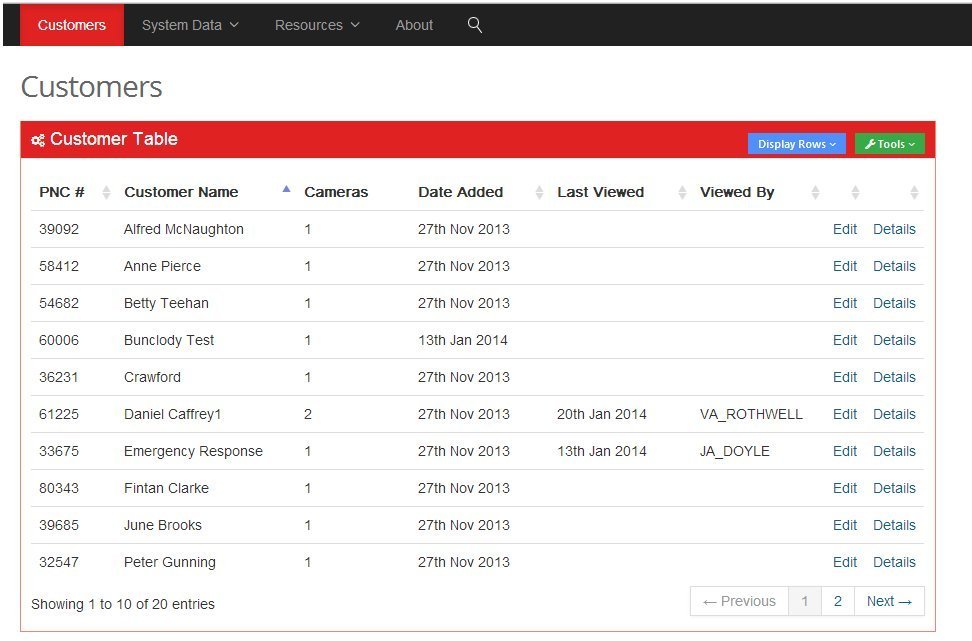
The portal facilitates entry of the minimal customer information required.
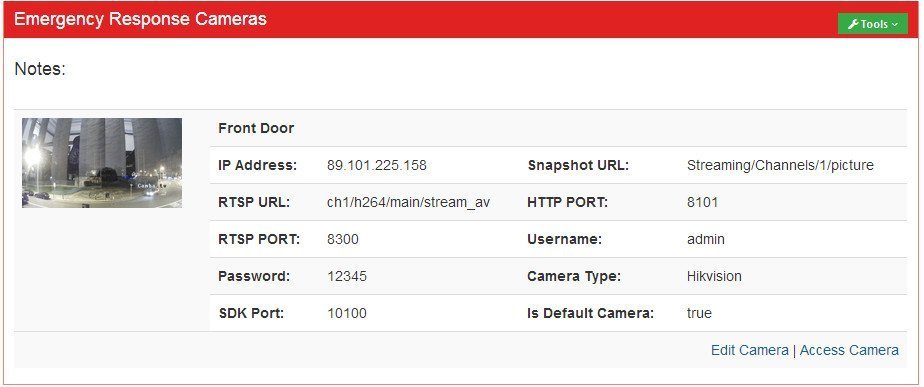
The portal allows for the addition of camera information for each customer, as well as serving as the entry point for direct access to the camera itself.
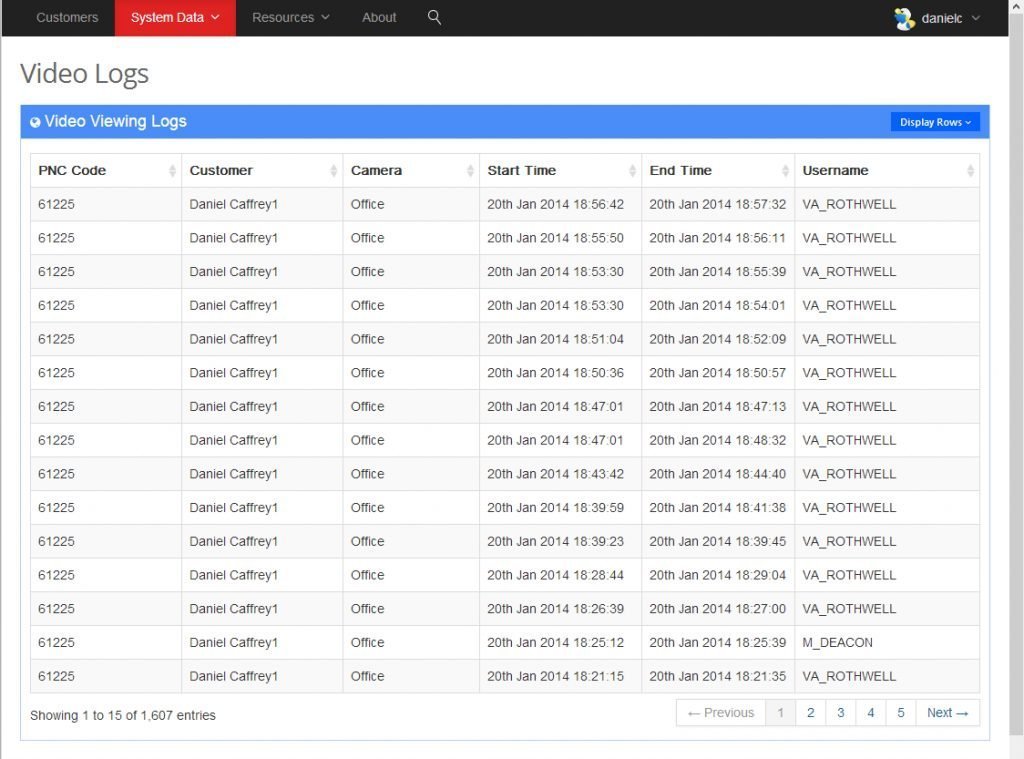
It also provides access to the viewing logs which allow administrators to see which video streams were watched, when and by whom.
�Camera Installation Process
Evercam have defined and documented all procedures relating to the installation and configuration of the camera hardware required to interact with the system.