

Evercam is in the business of increasing construction productivity. Our goal is to empower communication and collaboration in construction with project information. We build tools that capture the big picture and outward the details.
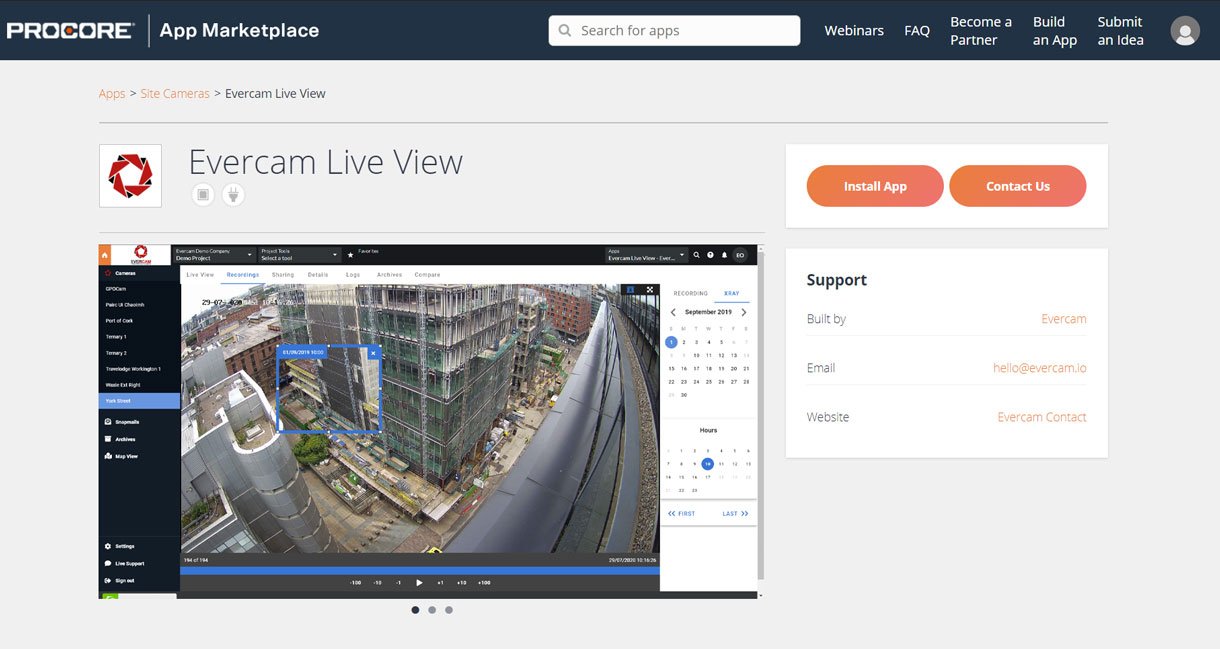
We are very excited to announce our Procore Integration. Procore is a cloud-based construction software used within the construction industry worldwide. Procore users have a varied suite of project management tools in one system and Evercam is now part of its cohort. We are there to help construction companies maintain visibility into projects from anywhere and anytime.
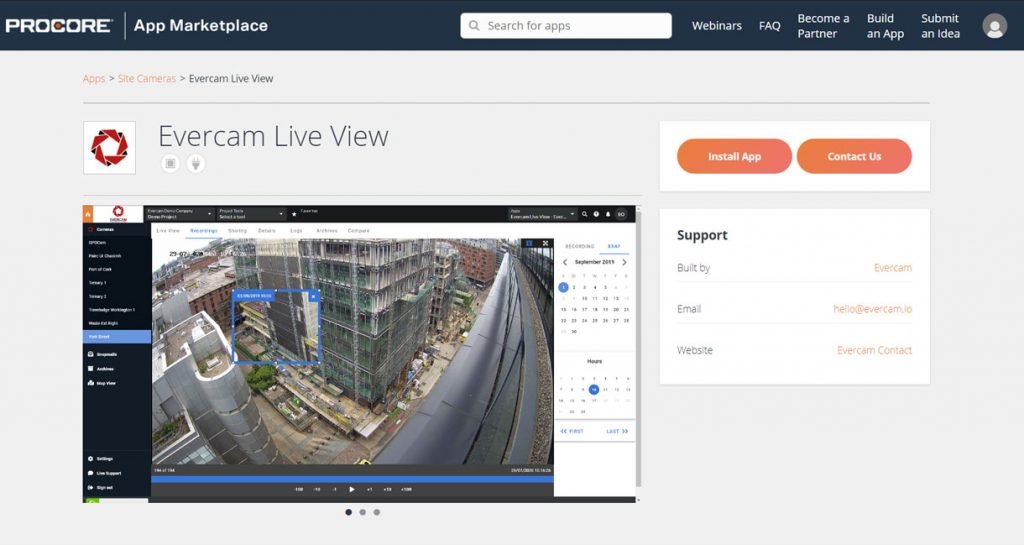
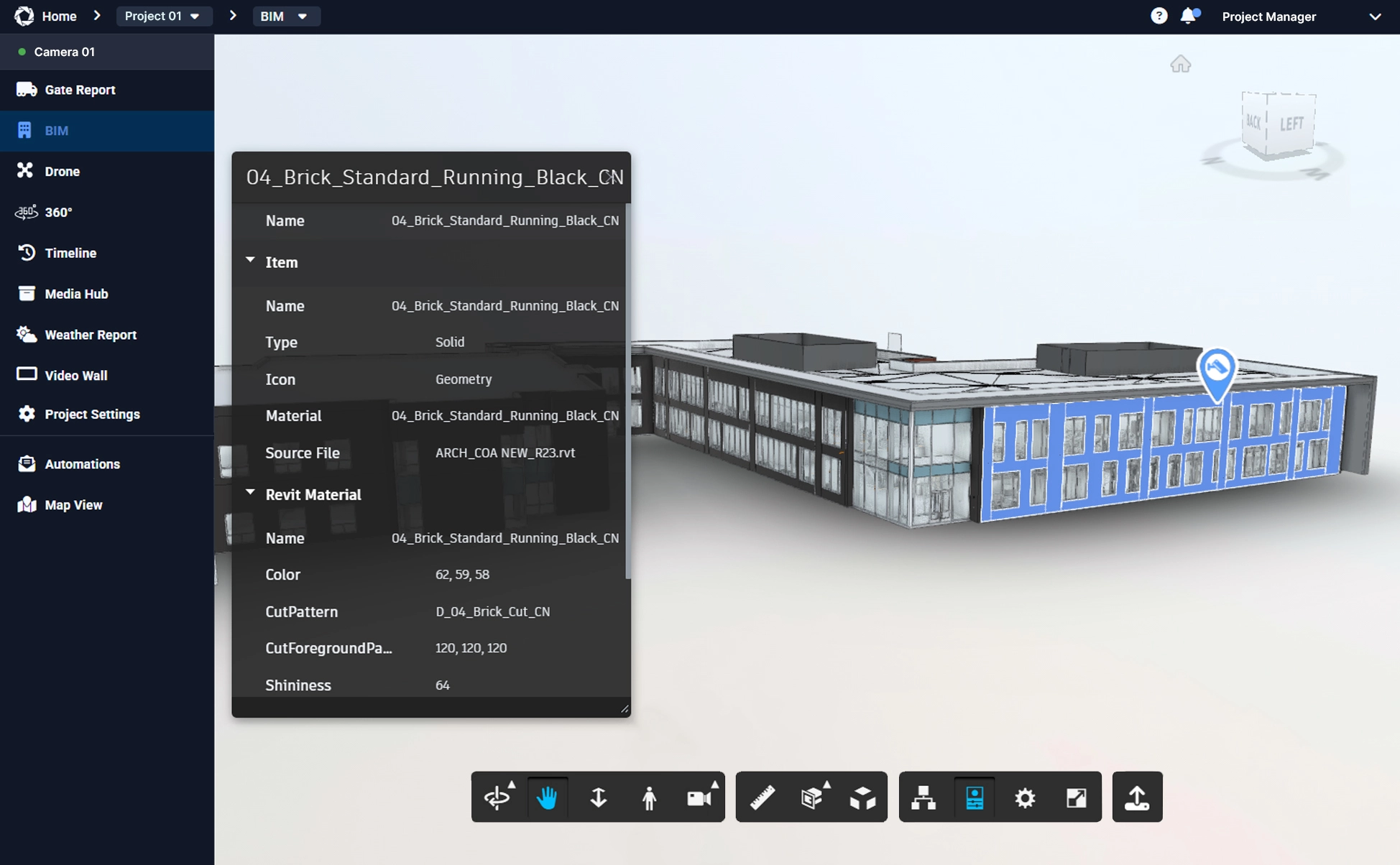
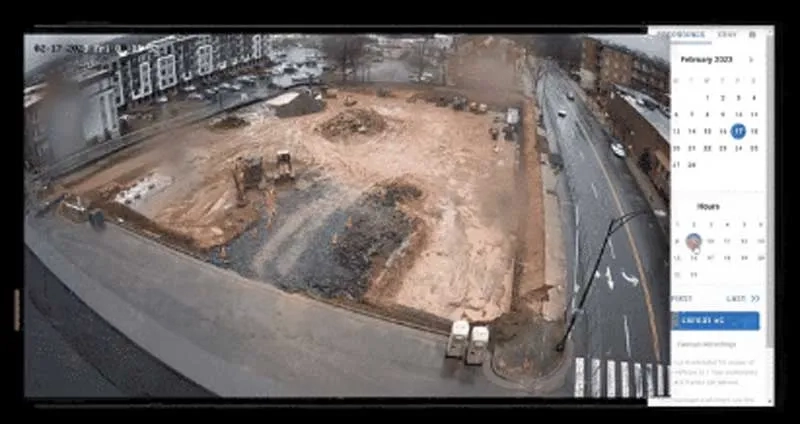
Find�all of your Evercam features including�Live streaming,�X-ray view,�BIM Compare, and�Gate Report�in one place�within your Project Dashboard in�Procore.
Visit the Procore marketplace�and click on "Install App". Once you have added the Evercam App to your project view simply select the app and login with your Evercam credentials.

Once you have added the Evercam App, go to your project view Select > Apps (3) then App Management (4)

Select > View Evercam (5)

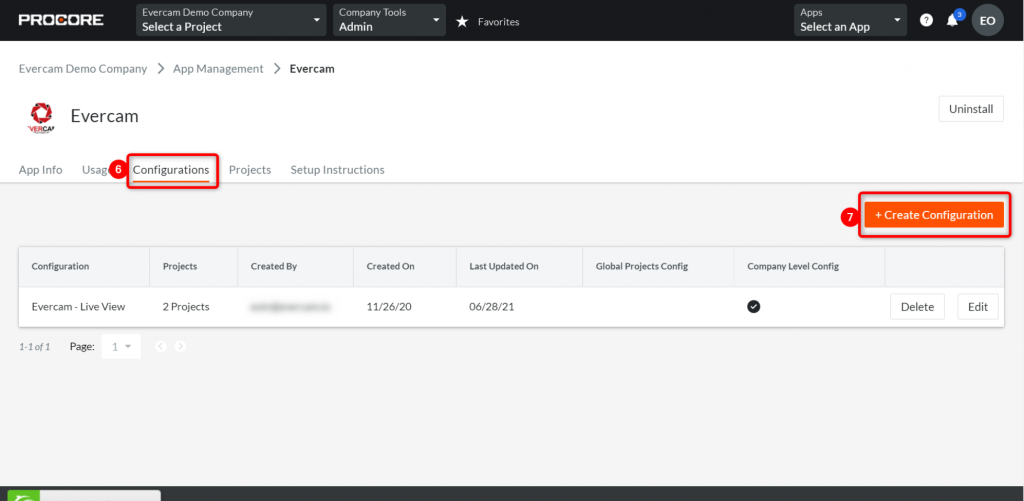
Select > Configurations (6) then > Create Configuration (7)
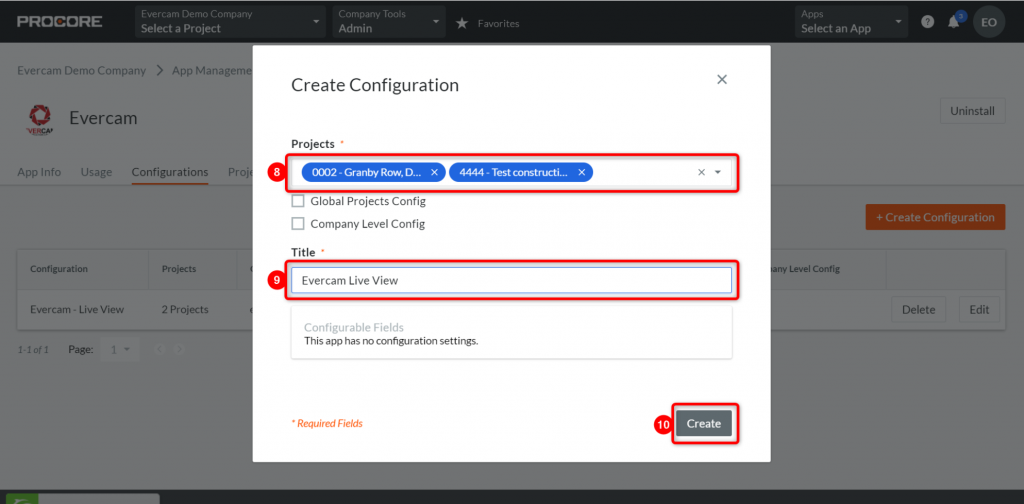
Choose which Projects (8) you want to link to Evercam to. Add a Title (9) then select > Create (10)
For any questions, feel free to�reach out to us.�Happy integration!
You can also check the full list of our Construction project management software Integrations